How to configure WebRTC with AudioCodes SBC.
This is used for Click-to-Call Project - More details here.
For WebRTC you need to create few components with the following details.
After that create IP Group with the components and add configure the routing with Tags, IP-to-IP routing or the method you prefer.
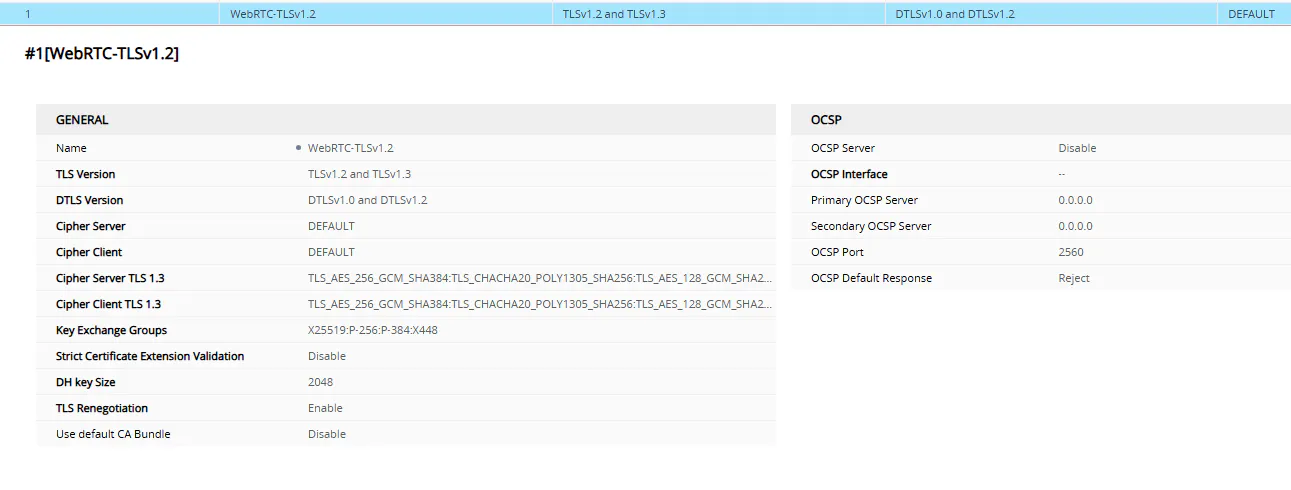
TLS Context:
Name: WebRTC (optional)
TLS version: TLS1.2 +
DTLS version: TLS1.2 +
Include Secure TLS/DTLS versions
SIP Interface:
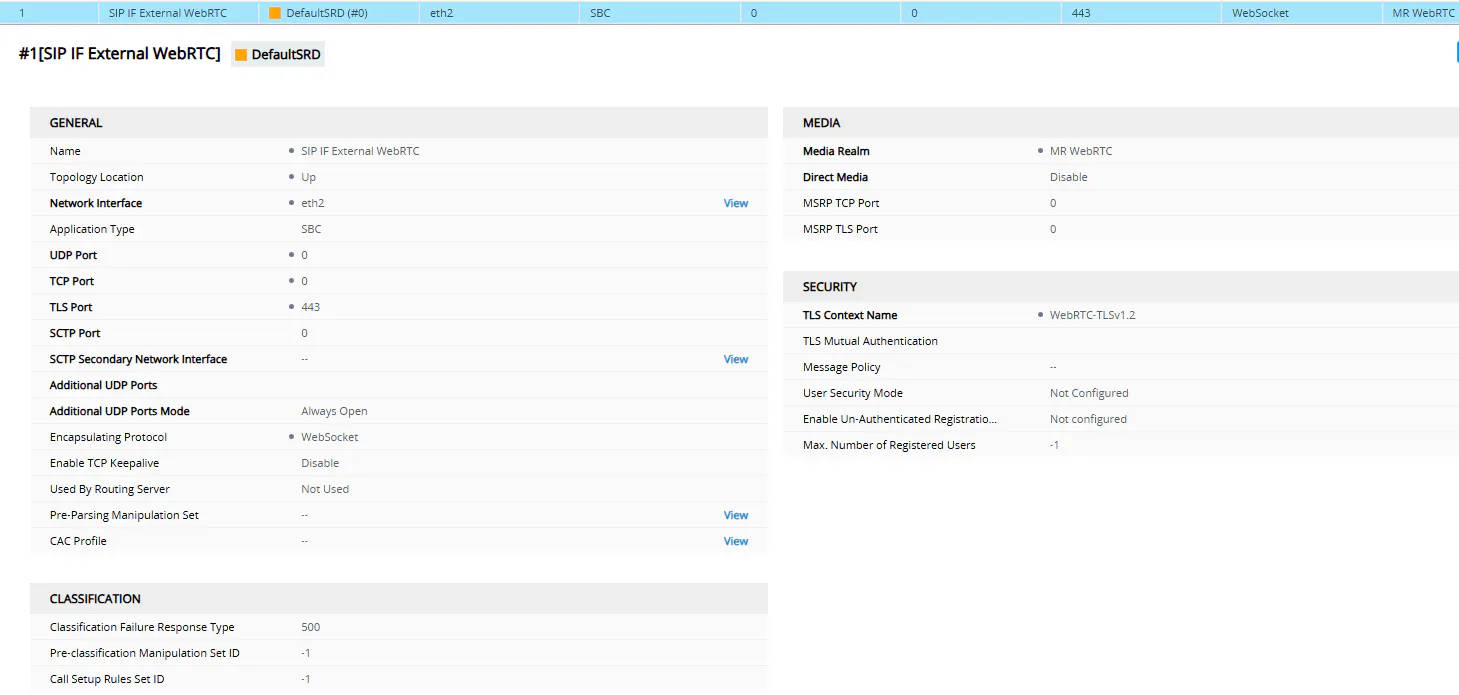
Name SIP IF WebRTC (optional)
Network interface: internet required
Topology Location (optional)
TLS Port: 443
Encapsulating Protocol: WebSocket
The rest of the configuration should come from you and depend on your environment
Media Realm:
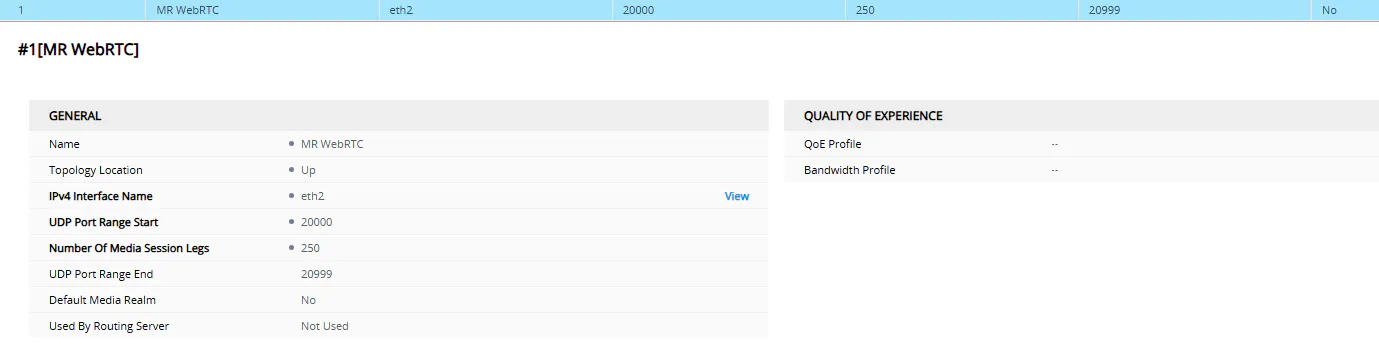
Use your Media Network Interface (could be the same as SIP Interface or different)
Port range is up to you and your organization
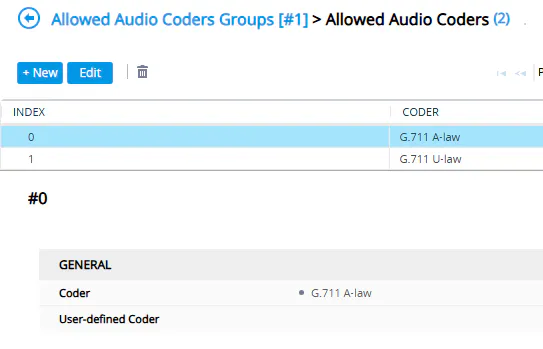
Allowed Audio Coders groups:
Include
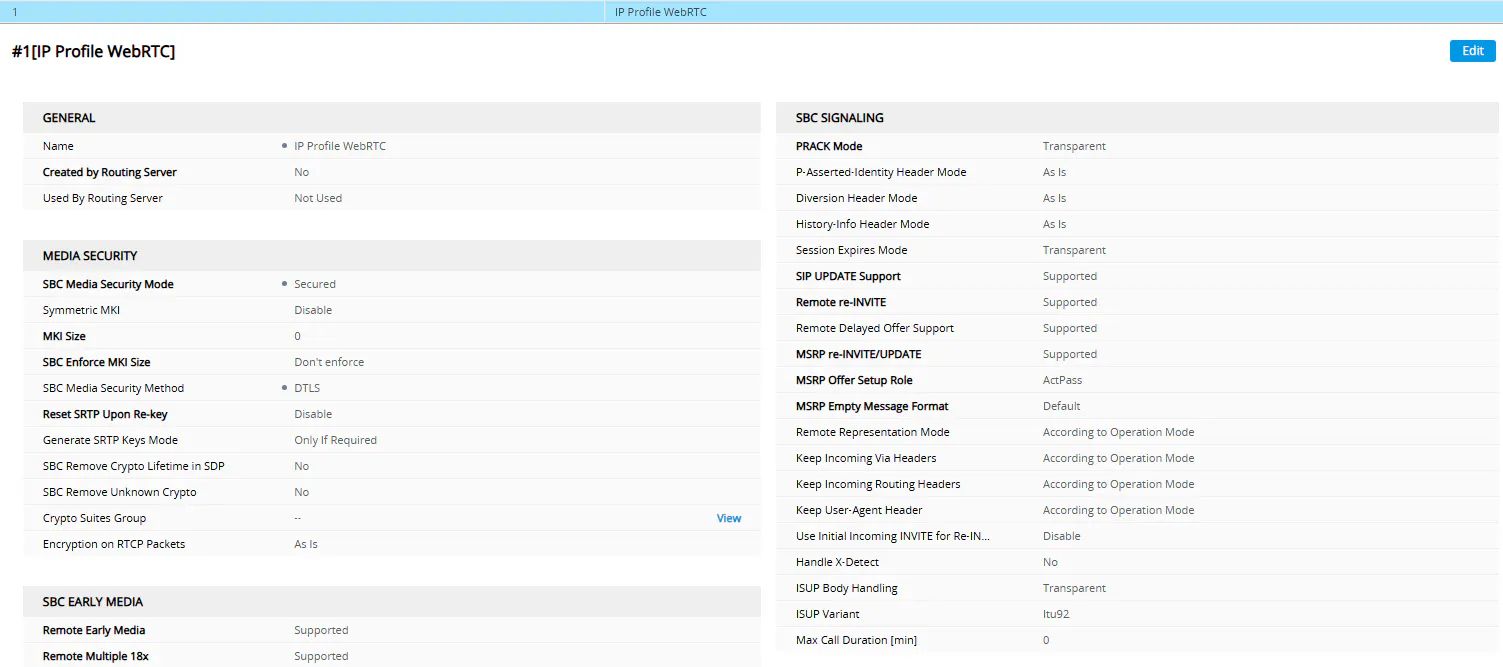
IP Profile
SBC Media Security Mode: Secured
SBC Media Security Method: DTLS
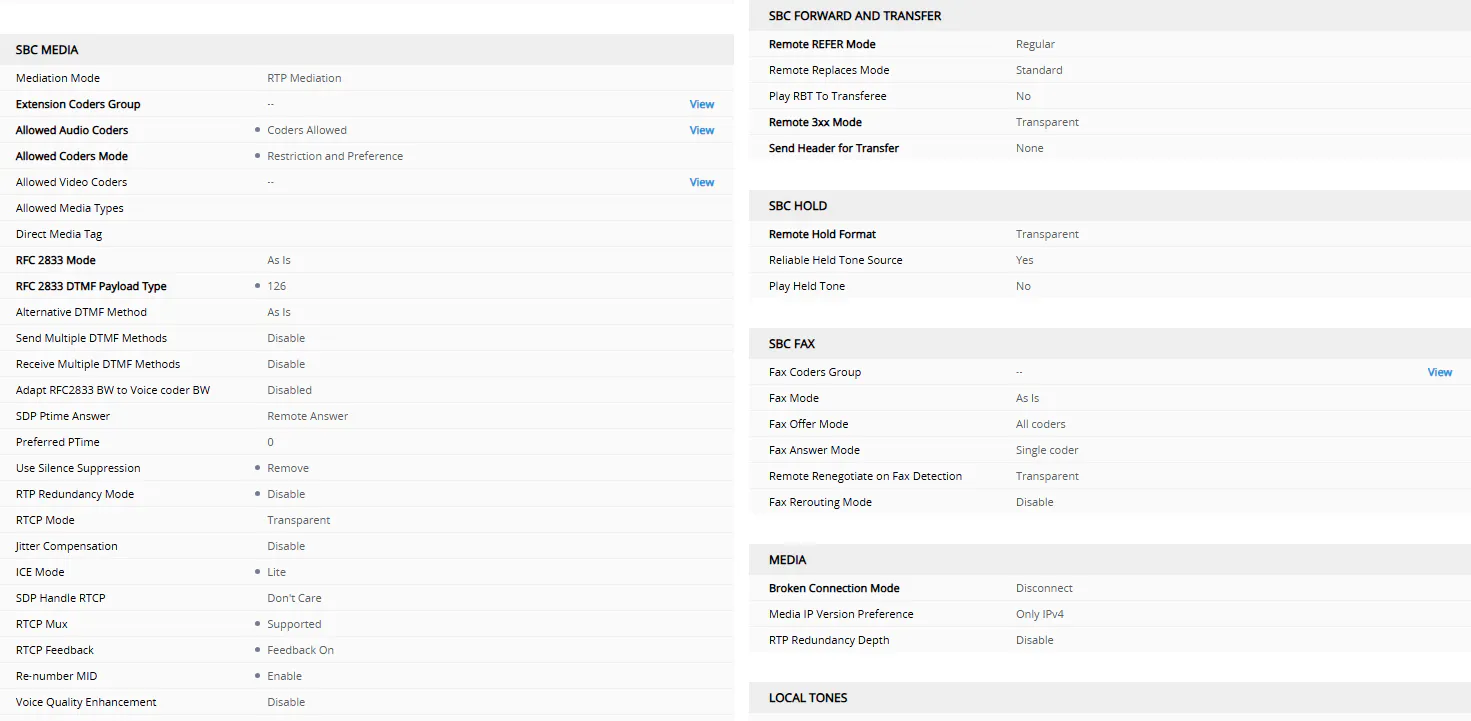
Allowed Audio Coders: Created Audio Coders Group
RFC 2833 DTMF Payload Type: 126
Use Silence Suppression: Remove
RTP Redundancy Mode: Disable
ICE Mode: Lite
RTCP Mux: Supported
RTCP Feedback: Feedback On
Re-number MID: Enable
IP Group
Name: IPG WebRTC
Type: User
IP Profile: The one you created
Media Realm: The one you created
Topology Location is based on your environment.
Add the necessarily Call Setup rules, Tags to the IP Group and configure the routing.
Tip and Tricks:
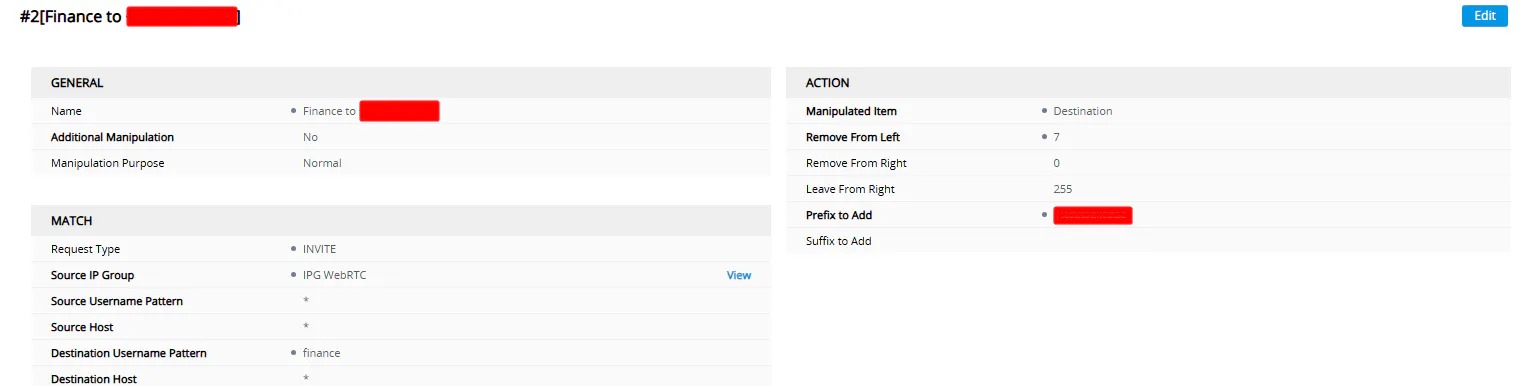
In your Website you can create a button, named Finance, so you keep you numbers hidden.
On the telephony device(AudioCodes SBC) you can do a simple manipulation, which changes FINANCE to the actual number.